Who is this for?
👤 The Kami extension is recommended for all Kami users.
👤 Can be installed by anyone using the Microsoft Edge browser.
👤 This is a free extension; users on any Kami plan can use this.
Not using Microsoft Edge? The Kami extension is also available to install on the Google Chrome browser.
What is the Kami extension?
Our Microsoft Edge extension allows you to experience the power of Kami in one click. It’s totally free, provides a seamless experience, and is the quickest way to access our 40+ tools and features.
Extension benefits
-
Access on demand — The Kami extension is available for both teachers and students, so everyone is just a click away from adding Kami-magic, everyday.
-
Open with Kami button — Once you’ve downloaded our latest extension, a Kami icon will appear in Microsoft Word, Excel, PowerPoint, Teachers Pay Teachers, and Canva. Now it’s even easier to open resources straight into Kami!
-
Integrations made easy — Get the most out of our LMS integrations with the extension. Plus, create Teams assignments directly from Kami.
Adding the Kami extension
Installing is easy! Just head to Kami's Microsoft Edge Add-ons page and click the Get button.

Pinning the Kami extension
Now that your extension is installed, don’t forget to pin it in your Edge browser for quicker access!
To pin your Kami extension, click the Extensions button (looks like a puzzle piece) in Edge, then click the Pin button next to Kami for Microsoft Edge™.

Using the Kami extension
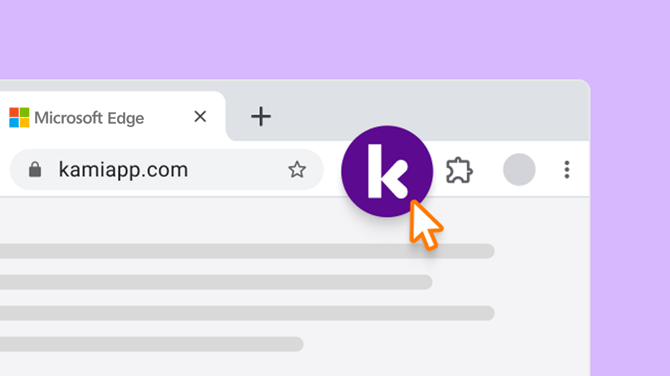
After installing and pinning, the Kami extension will now appear next to your extension button in Edge.
Clicking the Kami extension opens a drop-down menu where you can easily access the Kami app or any apps in the Kami product suite.
