Who can use this?
The steps in this guide require an assignment that contains questions created using the Questions AI tool. Never used the Questions AI tool before? Learn more about how it works and how it can help you.
What is auto-grading?
Assignments containing questions created using the Questions AI tool will allow you to use Kami auto-grading.
The behavior of the auto-grading system depends on the type of answers accepted by the questions in your assignment, which is configured when the questions are created. Learn more about each below:
Single-answer questions
If a student's answer matches the answer key exactly, it'll be graded as Correct. Otherwise, it will be graded as Incorrect.
Multiple-answer questions
If a student's answer matches all correct options exactly, it'll be graded as Correct, and full credits given.
If a student’s answer includes no correct option, it'll be graded as Incorrect, and no credit will be given.
If a student’s answer includes at least one incorrect option, it'll be graded as Inaccurate, and no credit will be given.
Short Answer
If the Allow partial matches setting is not selected, student answers must be exactly the same as your answer key (the same word order, spelling, spacing, and punctuation).
When the Allow partial matches setting is selected, student answers can be partially correct. If the student's answer matches the answer key exactly, it'll also be graded as correct.
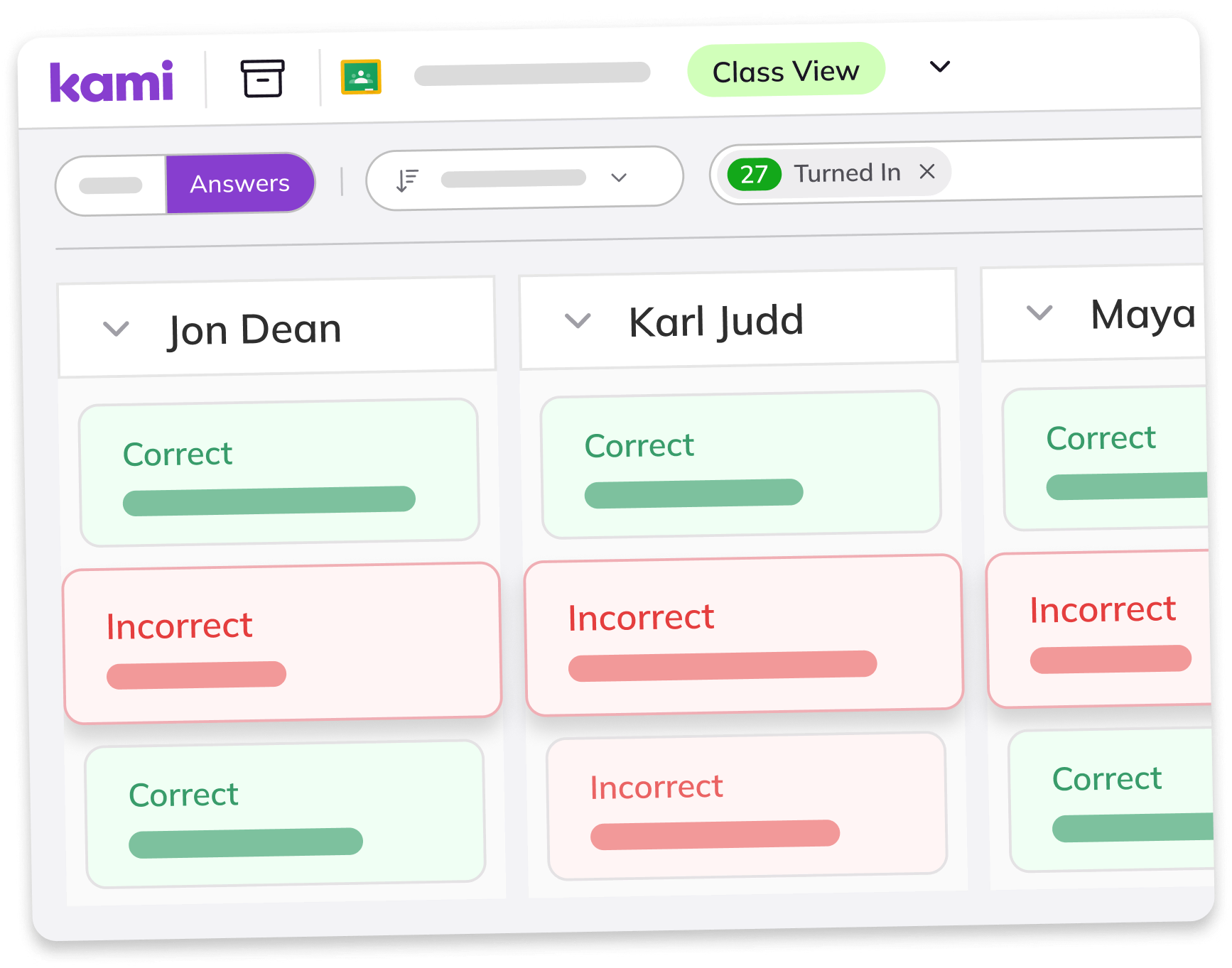
Viewing and applying auto-grades in Class View
Assignments containing questions created using the Questions AI tool will allow you to use Kami auto-grading.
Once your students have turned in their assignments, just open Class View to see the auto-graded results, apply grades, and return the work back to them.
1. After opening Class View, select the Answers tab on the top left side of the page. Questions will be shown a panel on the left side of the page, and student answers are shown in rows in the main area of the page, alongside each question.
%20(1)-png-3.png?width=670&height=249&name=Screenshot%20Template%20(Insert%20image)%20(1)-png-3.png)
%20(1)-png-4.png?width=670&height=327&name=Screenshot%20Template%20(Insert%20image)%20(1)-png-4.png)
3. To adjust the grade of an answer, simply click on currently assigned grade to open the drop down of grading options. After selecting a new one, the student's auto-graded score (next to their name) will be updated to reflect the change.
%20(2)-png-3.png?width=670&height=372&name=Screenshot%20Template%20(Insert%20image)%20(2)-png-3.png)
4. Once you've finished making any necessary adjustments, select the Auto-grade button to accept and attach the score. Afterwards, you can select the Return button to send the graded assignment back to the student.
%20(4)-png-1.png?width=670&height=425&name=Screenshot%20Template%20(Insert%20image)%20(4)-png-1.png)
📝You can still change a students grade if needed, even if it has already been returned to them. Just adjust the total points, then select the Update button.